
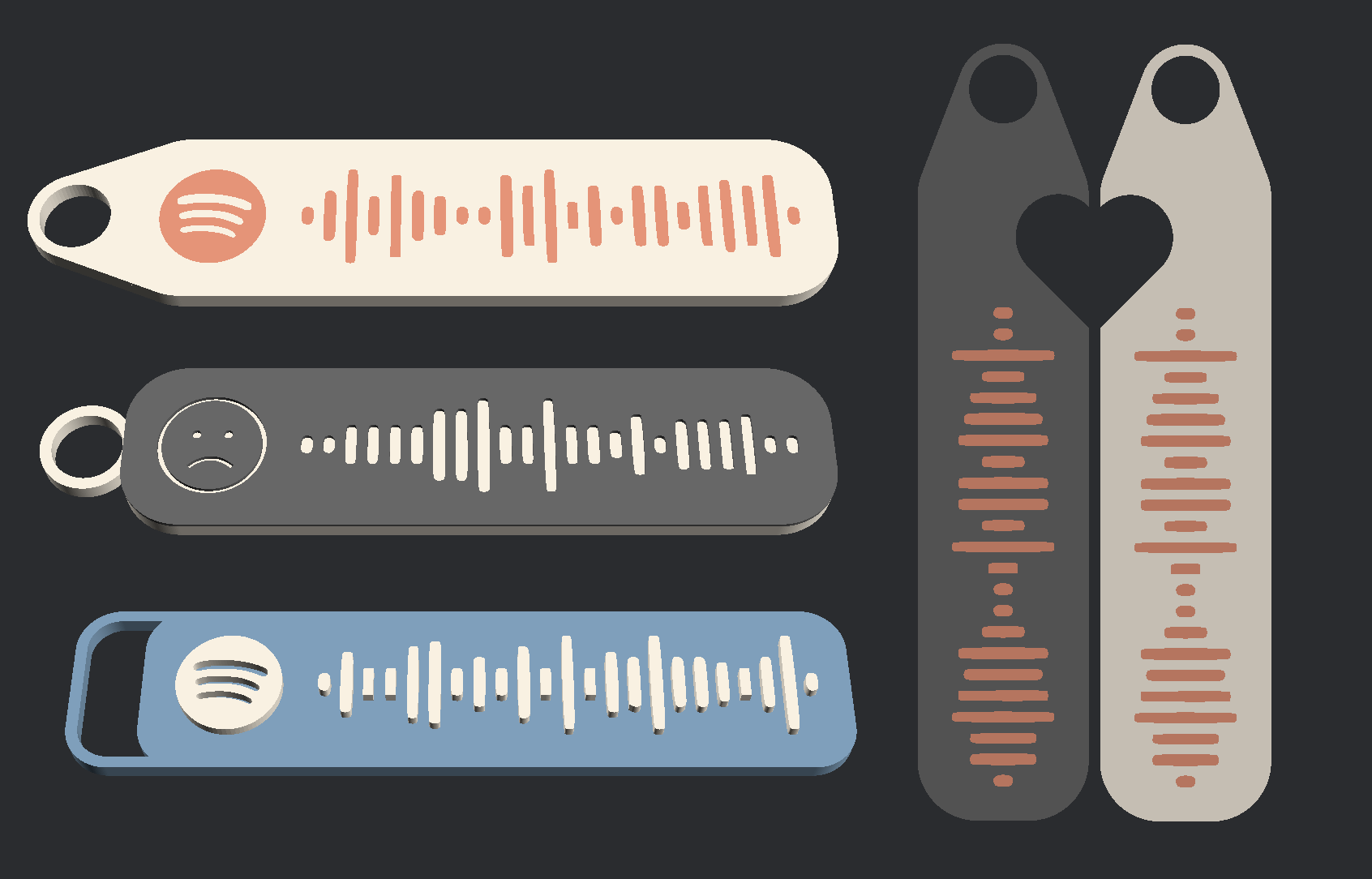
Model Overview & Print Notes
Summary
Make a Spotify key-ring or some tags!
Full description & instructions are only availble on Thingiverse or Printables- https://www.thingiverse.com/thing:4933844
https://www.printables.com/model/78140-customizable-spotify-code-keyring-or-tag
Updated 14 Sept 2021:
- Added a Line Size value that allows you to optimize for printing!
- Added 5 keyring options
- Add text instead of the code
- Move the keyring part to the other side
- Some fixes/optimization
- Added a border option
- More corner options
- 2D export (for laser/cnc users)
Features

- Easy to customize
- Change the sizes
- Multiple frame options
- Change the icon
- Use text instead of a code (useful for double sided prints)
- Multi-color export (layer-change or inlay)
Notes:
The online customizer hasn't worked for a while now, there are instructions below for OpenSCAD (it's just as easy, much quicker and free).
I've included the heart cutout template if you just want to use another program to add the code/some text (QueenBee3D has create a tutorial here if you're interested in learning some basic 3D modelling skills - Customized Spotify Keychain)
The example svg/STL files are obviously a Rick Roll if that's what you're here for :)
I've also uploaded a .zip file with more types

New border and corner options:
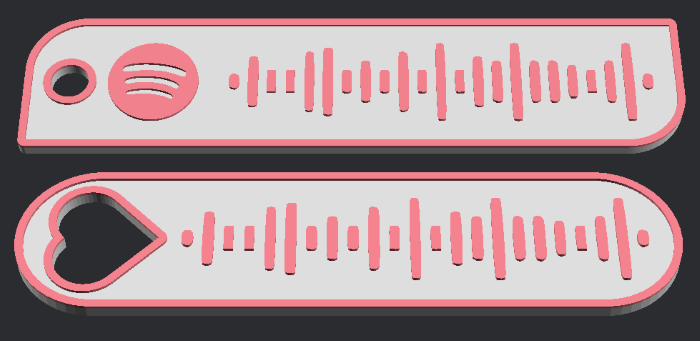
Optimize by line size

How to Customize
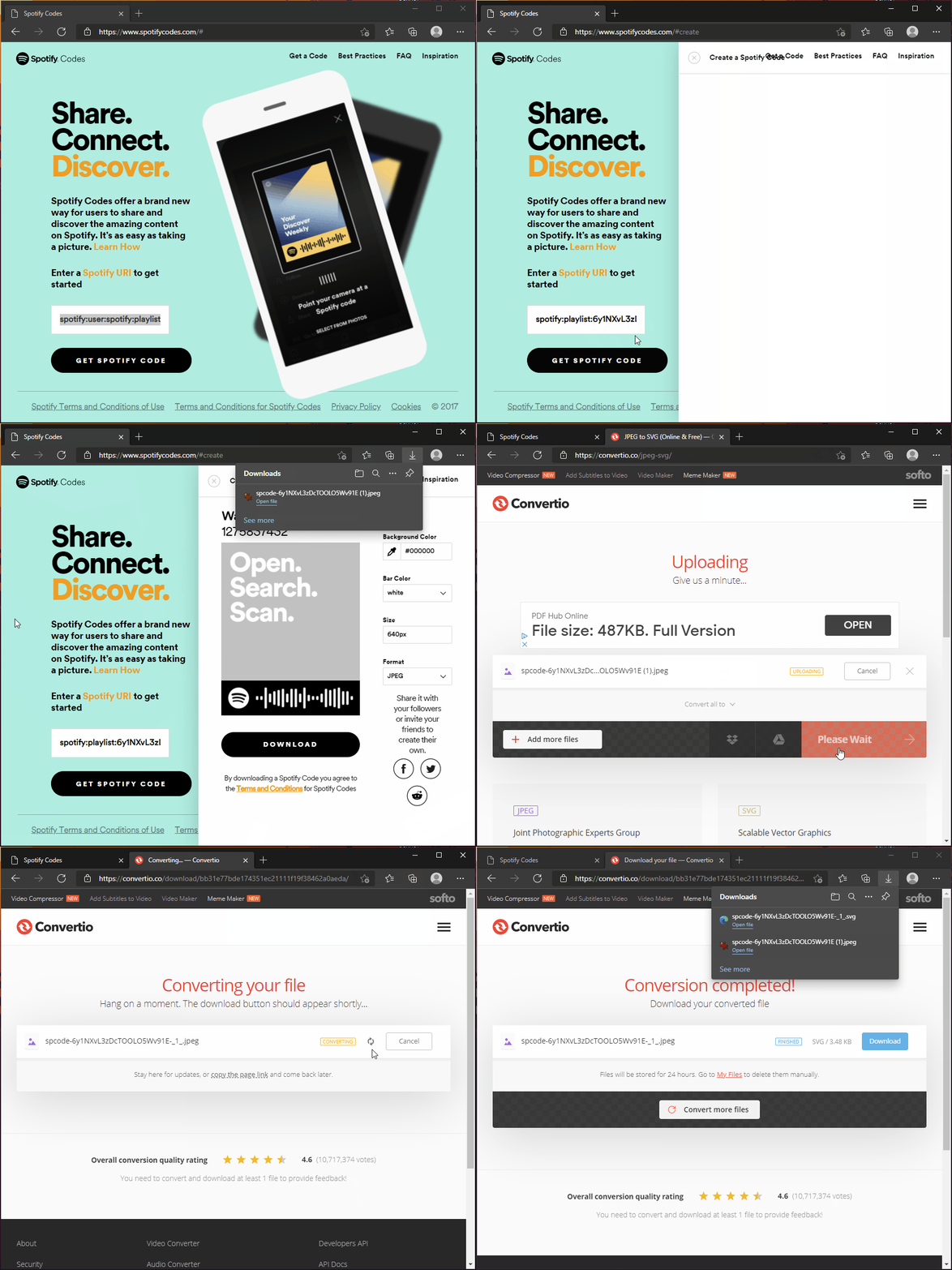
Create the Spotify Code
- Go to here - https://www.spotifycodes.com/#create
- Enter your Spotify URL and then click download (use the default settings)
- You can right-click songs, artists, playlists, etc and go to Share > Copy Link To Playlist
Convert the downloaded JPEG file to an SVG
- Go to this site - https://convertio.co/jpeg-svg/
- Drag the JPEG file into the window
- Click Convert. When it's finished, click download
I'm aware you can download the code as a SVG file from the first site, but this will not be formatted properly for our uses.
Tip: To see a larger view of the below image - Right Click > Open in new tab
Customize with OpenSCAD
- Download OpenSCAD from here and install it - https://openscad.org/downloads.html
- Put the downloaded SVG file in the same folder as the .SCAD file from this page
- Double-click the .SCAD file to open it
- Click Window, then untick Hide Customizer
Optional: Click Window, then tick Hide Editor - Customize the settings. After changing a setting, you may need to click outside the text box to apply the change.
- Enter the SVG file name in the Basic settings tab or rename the file to Code.svg
- Click Design > Render and wait for the design to render
- Click File > Export > Export to STL
- Save the file
Note: If you want to inlay the code/icon, you'll need to export and save both 'Multi-Color Preview' and 'Multi-Color Code' under Basic Settings.


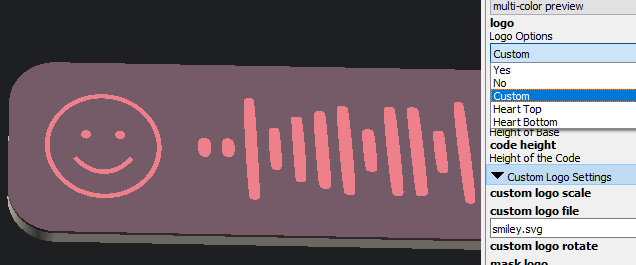
How to use a custom icon
I suggest downloading icons from here - https://iconmonstr.com/
- Put the downloaded SVG file in the same folder as the .SCAD file
- Type the filename into the customizer
- Select the Custom Logo Option
- You may need to change the file scale setting
Notes
If you want to print a double sided tag, you can set Base Height to 0 and export the second side. Then just flip this over in the slicer
If you want a different color for the logo and code, you can enable Custom Logo and leave the Custom Logo File field empty. Then to get the logo, use text and just enter a space.
You can rotate the Heart Hole keyring option using the custom logo rotation settings
- If you want to rotate or invert the Spotify logo, use custom logo and one of these

Other Customizable Things





💬Thingiverse Community Comments(24)
★Thingiverse Original Reviews